Launcher Repair
Some launchers have switched off game downloads, loader installation and modpack installation in newer releases, or turned them off by region. The Launcher Repair Tool restores these features while keeping every change minimal, verifiable and reversible.
What can be restored
| Item | Description |
|---|---|
| Minecraft version list | Restores the version list on the Download page and installation of the game and mod loaders |
| Install modpack from file | Restores the file picker of the Install Modpack button |
| Modpack installation | Restores installation of CurseForge, Modrinth, MCBBS, HMCL, MMC and other modpack formats |
| Region lock | Lifts the region-based block on downloads, installation and file completion |
| Disable auto-update | Keeps a launcher update from switching these features off again |
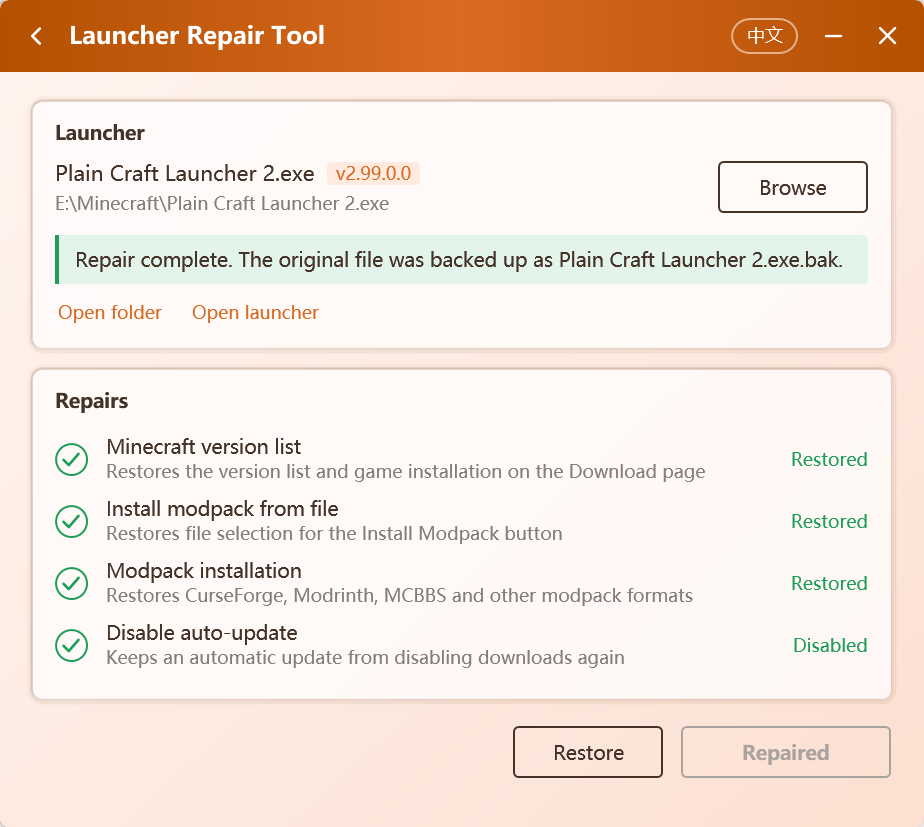
Campfire inspects the selected launcher first, lists only the items that apply to it, and marks each one as pending, restored, not needed and so on.
Steps
- Close the launcher. Its file is locked while it runs, and Campfire asks you to close it first.
- Open Campfire and choose Launcher Repair Tool on the Tools tab.
- Select the launcher. Campfire looks for one in its own folder; you can also click Browse or drag the launcher file into the window.
- Review the result and the Repairs list, then click Repair.
- When it finishes, click Open launcher to start using it.
Launchers in protected folders
If the launcher sits in a protected folder such as Program Files, Windows may refuse the write. Run Campfire as administrator in that case.
Inspection results
| Message | Meaning |
|---|---|
| Downloads are switched off and can be repaired | An affected build was found and can be repaired |
| Downloads are switched off by region and can be repaired | A region lock was found and can be lifted |
| Downloads were restored by Campfire | This launcher has already been repaired |
| Downloads work, no repair needed | This build is not affected; nothing will be changed |
| The code differs from known builds and is not supported yet | The patch points cannot be confirmed; nothing will be changed |
Whenever Campfire cannot be sure a change is safe, it does not write anything.
Backup and restore
The launcher as it was before the repair is kept in the same folder with a .bak suffix. To bring it back, either:
- click Restore in the Launcher Repair Tool; Campfire first checks that the backup is a supported launcher; or
- delete the repaired launcher and rename the
.bakfile back to the original name.
About auto-update
So that a launcher update cannot switch the features off again, the repair also disables the launcher's auto-update. To upgrade the launcher:
- download the new launcher manually and replace the old file;
- run Campfire again to check whether the new build needs a repair.
Safety
- Minimal changes. Only the few methods directly involved in the features above are changed, and no network activity is added.
- Precise targeting. Patch points are found by method name and code shape, not fixed file offsets, so later minor launcher builds can usually be repaired without a Campfire update.
- Verify before writing. The repaired launcher is built in memory, reloaded and checked item by item before anything is written. If any step fails, the original file stays untouched.
- Local only. Nothing is uploaded or downloaded during a repair.
See How It Works for technical details.